
What are To-dos?
To-dos are an ad hoc task management and communication tool that will allow you to assign a task to internal team members and track its progress.
Need someone to call a trade partner? Make a to-do.
Want someone to review a document? Make a to-do.
Need to print a punchlist for a Trade Partner in the field? Make and export a to-do.
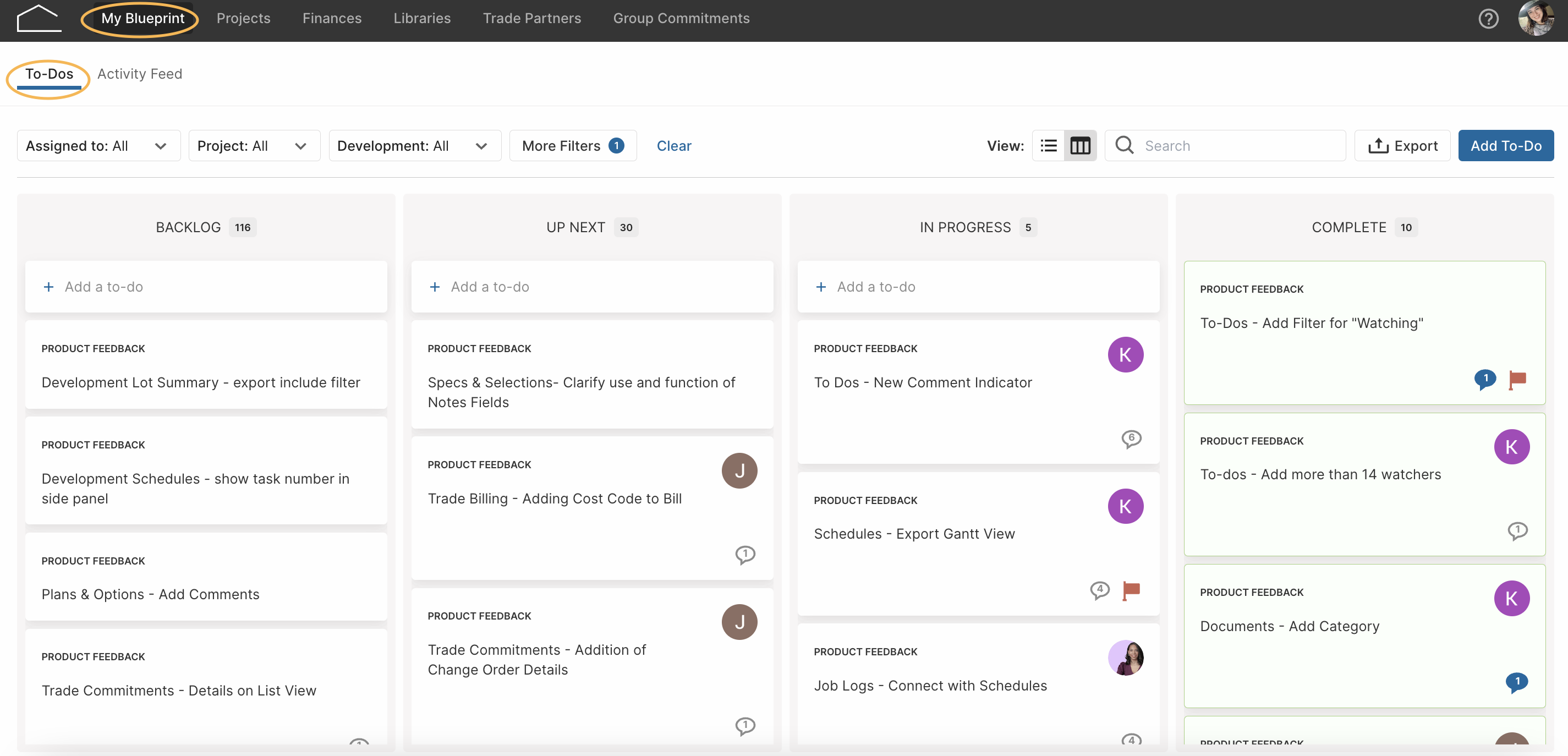
✐ Note: To-dos can be located on your My Blueprint page. To-dos assigned to a project will appear on the project To-dos tab as well.
 __
__
How to Use To-dos
1. Make bookmarks of custom views
Set To-do filters the way you want them and then bookmark the URL to create custom views. The URL is sticky meaning the filters remain once you bookmark the URL.
✐ Note: Setting multiple filters will only surface those to-dos that match ALL the filters set. Remember to use the blue 'Clear' button to remove any existing filters.
In addition to setting relevant filters, you can also customize your view using the toggle button at the top of the screen. This allows you to select either the Kanban view (columns, in the image above) or List view (rows, in the image below) depending on your preference.
2. Make it as detailed as possible
You can add a new to-do or make edits to existing to-dos. Title and Status are always required fields, but it is best practice to add as much detail as possible.
Information you can add to a to-do item:
- Title
- Description
- Status ("Backlog", "Up next", "In Progress", or "Completed")
- Attach files
- Comments
✐ Note: Hyperlinks do not function in the description box of a To-do. It's best to hyperlink in the comments.
-
Project or Cohort
- By assigning a Project or Cohort, you can ensure your to-do filters with that particular project or cohort, and appears on the project-level to-dos, so that all users on that project will be able to see it
-
Type
- Type allows you to filter for specific to-dos based on the content, such as 'RFI' (Request for Information) or 'Design'
-
Due Date
- Due date will help users keep track of deadlines by color-coding to-dos: red (due date in the past), yellow (due date within the week), or green (completed)
-
Assignee
- You can set Assignees from the drop down list to ensure they see notifications when updates or comments are made
-
Watchers
- You can add Watchers from the drop down list, or by @tagging the user in a comment, to ensure they see notifications when updates or comments are made
-
Urgency
- To indicate that a to-do is Urgent, you can either click the flag icon at the top right corner of the to-do, or you can use the drop down box to select 'urgent' or 'not urgent'.
3. Communicate and take action
To-dos allow users to communicate with comments and attachments to move tasks towards completion.
There is a chat bubble icon on each to-do that shows the total number of comments. Upon opening your To-dos board, unread comments will show in blue to ensure users do not miss important notifications.
✐ Note: to learn more about using To-dos for Change Log see this Article
__
Questions? Feedback? Email us at Product-Support@homebound.com or chat with us Blueprint!
Comments
0 comments
Article is closed for comments.